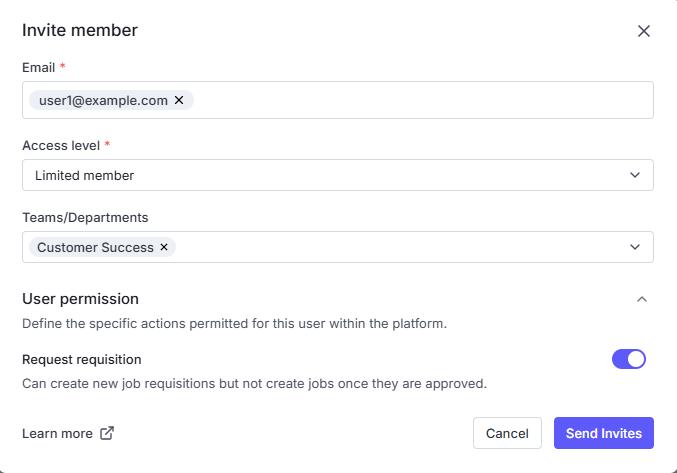
To add someone new to TalentsForce, firstly, you need to send them an invitation.
Access the Members page by clicking your avatar at the bottom left corner, then select Settings
Click the "Invite Member" button.
Fill in the user details:
Email: input an email or invite multiple users at once by entering multiple email addresses, separated by commas. Example: [email protected], [email protected]
Access level: Select an Access level
Teams/Departments (Optional): Assign the invited user(s) to one or more teams/departments. This helps organize your team and manage access more efficiently.
Customize user(s) permissions if needed
Click "Send Invites"
The invitation will be sent via email. Once accepted, the user will be added to your workspace.
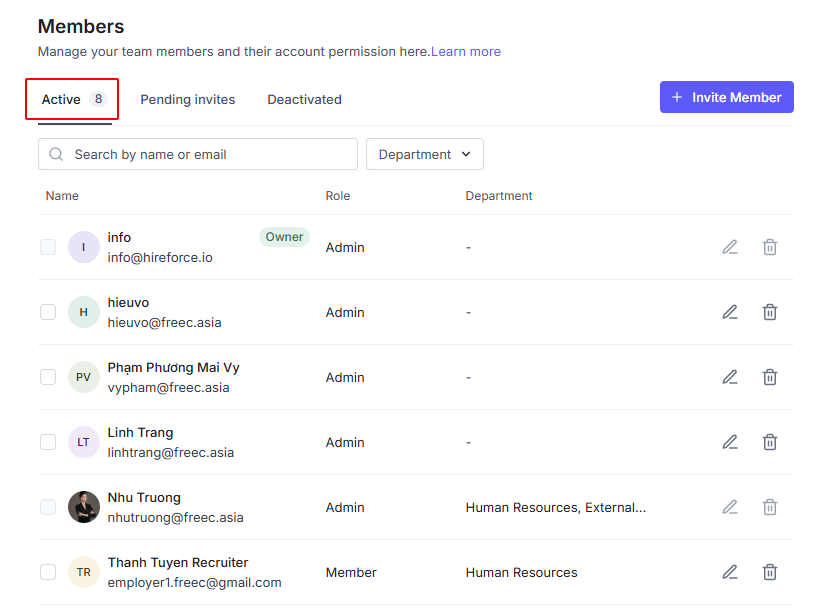
After sending an invitation, you can check to see if a user has accepted an invitation by going to the Member section.
If the user has accepted the invitation, they will be listed in the Active tab.
If the user has not accepted the invitation, they will be listed in the Pending Invites tab.
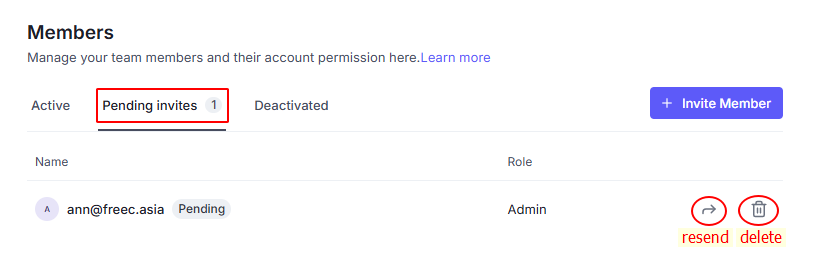
Resend the invitation email by clicking on the "Resend Invitation" button. This will send the user a new email with the same invitation link.
You can change the roles of members whose roles are lower than yours. Here’s how it works based on your role:
Owner: As the Owner who is Admin at the top of the member list, you have the highest level of access. You can edit the roles of all members in your organization, including Admins.
Admin: If you are an Admin but not the Owner, you can edit the roles of all members in your organization, excluding the Owner.
Member: As a Member, you can edit the roles of Limited Members.
 How to edit?
Click the Member tab.
Click the Edit icon on the right of the member you need to edit.
Check and update the Access level and Department field.
Click the Save button to complete.
Admins can deactivate a member to remove their access to the tenant without deleting their account.
To deactivate a member:
Go to the Active tab.
Click the Deactivate icon on the right of the member you need to deactivate.
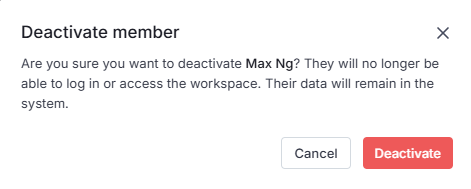
Click Deactivate to complete. If you click Cancel, the user remains active and no changes are applied.

The Deactivated tab displays all users who no longer have access to the tenant.
For deactivated users:
They cannot edit data or perform any actions in the tenant.
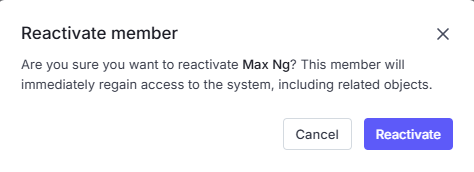
The only available action is Reactivate.
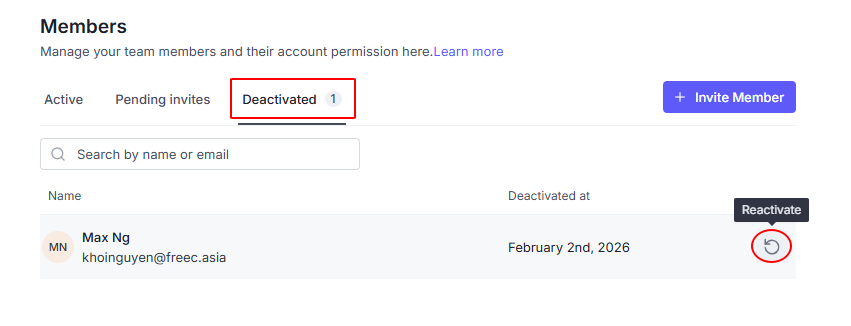
Admins can restore access for a deactivated member at any time.
To reactivate a member:
Go to the Deactivated tab
Click the Remove icon on the right of the member you need to deactivate.
Click Reactivate to complete. If you click Cancel, no changes are made.